 ModGarage
ModGarage › How it works
How to mod your car with ModGarage
ModGarage turns a photo of your own car into modified versions. Each car has a vehicle profile, each build gets a build sheet, and every build stays in the car's history.
What you need: an iPhone with ModGarage, a photo of your car and a ModGarage Premium subscription to generate builds.
A build has three parts: the photo, the style and the parts. Pick a style, parts, or both.
Step by step
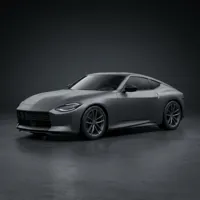
Add your car
In the Garage tab tap Add Car. Take or choose up to 5 photos; the first one is the cover. Give the car a name.
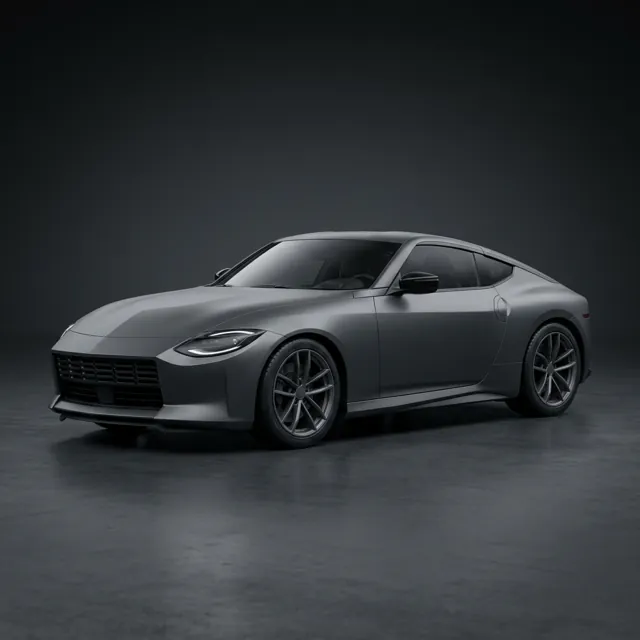
Fill in the vehicle profile
Pick the make and model from the list of 52 manufacturers or type your own, then the model year, the trim and the factory color. You can change it later with Edit Vehicle.
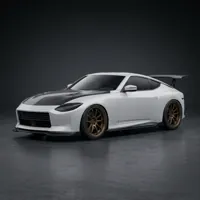
Choose a style
Tap Modify on the car and pick one of the 13 styles, from JDM to Clean. A style is optional if you only want parts.
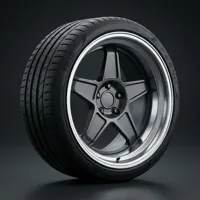
Choose parts
Open any of the 10 categories: paint, wheels, stance, aero, spoiler, window tint, lights, exhaust, accessories and scene. Tap + to add a photo of a real part you want on the car.

Review and Modify
Check the summary, add a note if you like, save the selection as a preset, and tap Modify. Generating needs Premium and an internet connection; it keeps running in the background with a Live Activity.

Look at the result
Drag the before/after slider. Save, Save in HD, share a story card, video or wallpaper, or tap Build On to add more mods on top of this build.

Open the build sheet and compare
The build sheet shows the build number, your car's spec header, a mod-level gauge and the parts by area. From the car page, Compare Builds puts two builds side by side with a parts diff.
Why the vehicle profile matters
When the profile is filled in, ModGarage tells the AI which car is in the photo, for example its year, make, model, trim and factory color, and asks it to keep the body shape, panel lines and light design. That helps the result still look like your car rather than a similar one.
The profile also builds the spec plate on the car card (for example “2024 NISSAN Z”) and the header of every build sheet. Each field is optional.
Using a photo of a real part
Most part groups end with a + tile. Add a clear photo of a wheel, spoiler, light or other part, and it is sent along with your car photo as a reference. In single-choice groups it replaces the catalog pick.
Reference photos are not kept in presets or remixes, so add them again when you reuse a selection.
Reading the build sheet
The build sheet groups every part by area: paint and wrap, wheels, suspension, body kit, lighting, glass, exhaust, accessories and scene. The tachometer shows the mod level: how many of the 10 areas, including the style, the build touches. Share the sheet as an image for social media or as plain text for forums and group chats.
Tips for a good car photo
- Shoot the whole car, with some space around it.
- A three-quarter front angle shows wheels, lights and body lines best.
- Even daylight or shade works better than harsh sun or night shots.
- Keep people and other cars out of the frame where you can.
- Use the same photo for builds you want to compare.
What ModGarage is not
ModGarage does not check fitment, sizes or road legality, and it does not sell parts. The images are AI illustrations of an idea. Before buying, check fitment and local rules with a shop. ModGarage is not affiliated with any car manufacturer.